
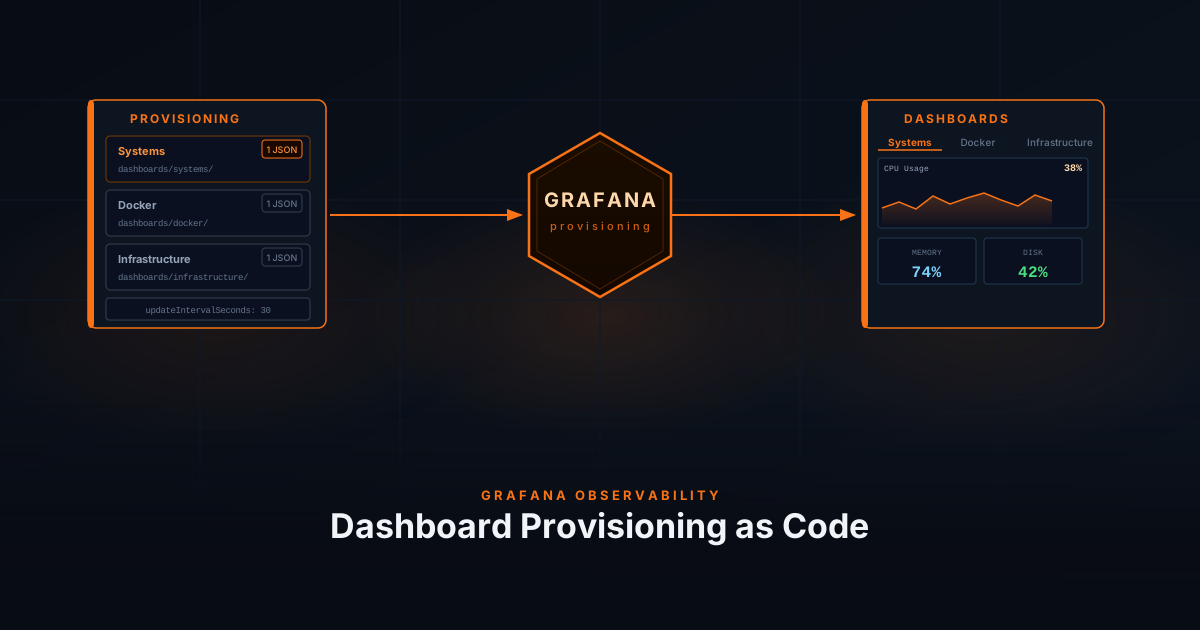
Dashboards created through the Grafana UI are stored in its SQLite database inside the grafana_data volume. The volume survives container rebuilds, but it is not in version control — there is no history, no way to diff changes, and no easy path to reproducing the same setup on another machine. Provisioning solves this by loading dashboards from JSON files on disk at startup, keeping them alongside the rest of your stack config in git.
Prerequisites
- Grafana running via Docker Compose
- Setup from Setting Up Your Observability Stack
How Dashboard Provisioning Works
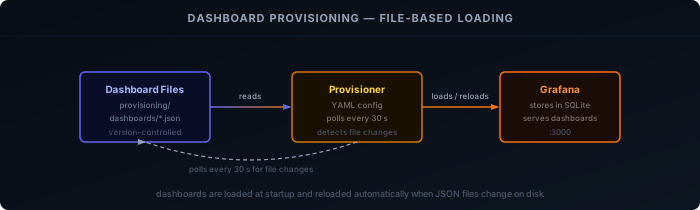
Grafana’s provisioning system reads a configuration file at startup that points to one or more directories. Any .json file it finds there is loaded as a dashboard and placed in the specified folder. If the file changes on disk, Grafana picks up the update within the configured interval — no restart required.
Directory Structure
Add a dashboards/ directory inside your existing provisioning folder:
grafana/
└── provisioning/
    ├── datasources/
    ├── alerting/
    └── dashboards/
        ├── dashboards.yaml
        ├── systems/
        │   └── system-metrics.json
        ├── docker/
        │   └── docker-metrics.json
        └── infrastructure/
└── traefik-proxy.jsonEach subdirectory maps to a folder in the Grafana UI. You can add as many folders and JSON files as you like.
Provisioner Config
Create the provider configuration file:
apiVersion: 1

providers:
  - name: "systems"
    orgId: 1
    folder: "Systems"
    type: file
    disableDeletion: false
    updateIntervalSeconds: 30
    allowUiUpdates: true
    options:
      path: /etc/grafana/provisioning/dashboards/systems

  - name: "infrastructure"
    orgId: 1
    folder: "Infrastructure"
    type: file
    disableDeletion: false
    updateIntervalSeconds: 30
    allowUiUpdates: true
    options:
      path: /etc/grafana/provisioning/dashboards/infrastructure

  - name: "docker"
    orgId: 1
    folder: "Docker"
    type: file
    disableDeletion: false
    updateIntervalSeconds: 30
    allowUiUpdates: true
    options:
path: /etc/grafana/provisioning/dashboards/dockerA few settings worth noting:
updateIntervalSeconds: 30— Grafana polls the directory every 30 seconds and reloads any changed JSON files. This means you can update a dashboard file and see the change in the UI without restarting the container.allowUiUpdates: true— You can still edit the dashboard in the Grafana UI. Changes made through the UI are written back to the JSON file on disk. Without this, any UI edits are discarded on the next reload.disableDeletion: false— If you delete a JSON file, Grafana removes the dashboard from the UI on the next poll.
Volume Mount
The provisioning directory needs to be mounted into the Grafana container. Add the volume mount to your docker-compose.yml:
volumes:
  - grafana_data:/var/lib/grafana
- ./provisioning:/etc/grafana/provisioningThe entire provisioning/ directory is mounted at once, so datasources, alerting rules, and dashboards all load from the same mount.
Exporting Dashboards from the UI
To get a dashboard’s JSON from an existing Grafana instance:
- Open the dashboard
- Click the Share icon (top toolbar) → Export
- Enable Export for sharing externally to replace internal datasource UIDs with variable names
- Click Save to file
Save the downloaded file into the appropriate subdirectory under provisioning/dashboards/. Grafana will pick it up within 30 seconds.
Apply Configuration
Restart Grafana to load the provisioner config for the first time:
docker restart grafanaAfter that, any new or updated JSON files in the dashboard directories are picked up automatically within 30 seconds.
Verification
Open Grafana → Dashboards and confirm the folders appear: Systems, Infrastructure, and Docker. Each folder should contain the dashboards from the corresponding JSON files.
To confirm provisioning is working correctly, check the Grafana logs:
docker logs grafana | grep -i provisionYou should see lines like:
provisioning.dashboard: Provisioned dashboard from file ...If a JSON file has a syntax error, Grafana logs the error and skips that file without affecting the others.