
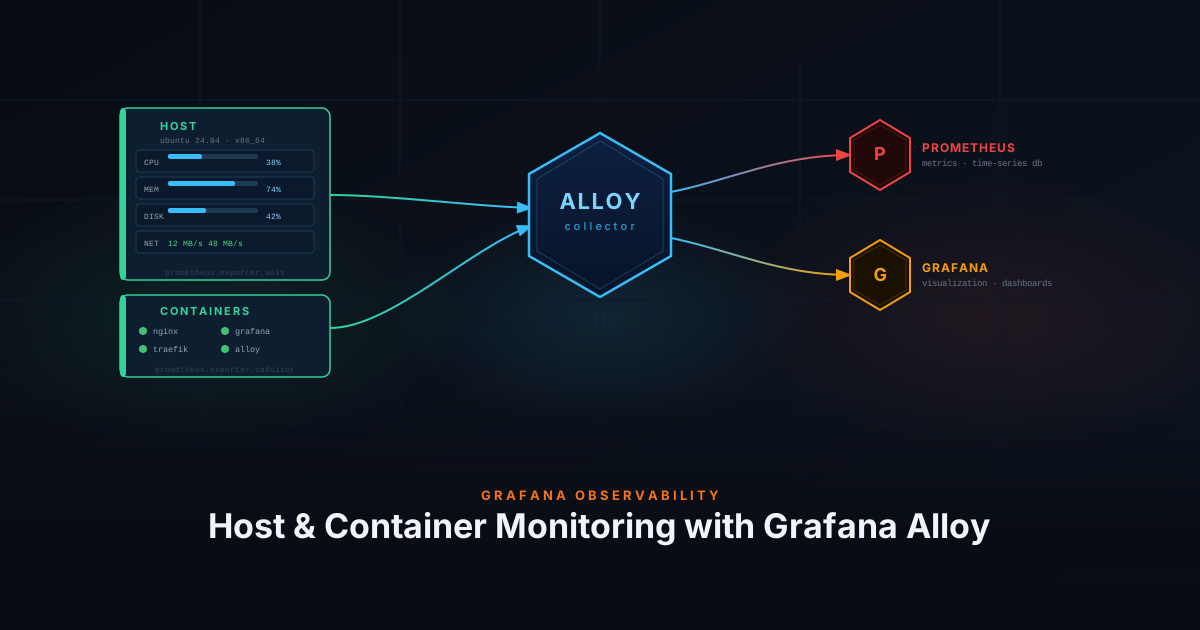
Monitoring your systems and containers is essential for maintaining a reliable homelab or home server. This guide uses Grafana Alloy’s built-in exporters to collect host and container metrics, with Prometheus for storage and Grafana for visualization — all managed through a single agent instead of separate containers per exporter.
Prerequisites
- Prometheus running and reachable
- Grafana running with Prometheus added as a datasource
- Grafana Alloy installed and running — see Setting Up Your Observability Stack
Host Metrics
Create an Alloy config file for host system metrics:
nano alloy/config/unix.alloyprometheus.exporter.unix "unix" {
rootfs_path = "/rootfs"
procfs_path = "/rootfs/proc"
sysfs_path = "/rootfs/sys"
disable_collectors = ["ipvs", "btrfs", "infiniband", "xfs", "zfs"]
enable_collectors = ["meminfo", "processes"]
filesystem {
fs_types_exclude = "^(autofs|binfmt_misc|bpf|cgroup2?|configfs|debugfs|devpts|devtmpfs|tmpfs|fusectl|hugetlbfs|iso9660|mqueue|nsfs|overlay|proc|procfs|pstore|rpc_pipefs|securityfs|selinuxfs|squashfs|sysfs|tracefs)$"
mount_points_exclude = "^/(dev|proc|run/credentials/.+|sys|var/lib/docker/.+)($|/)"
mount_timeout = "5s"
}
netclass {
ignored_devices = "^(veth.*|cali.*|[a-f0-9]{15})$"
}
netdev {
device_exclude = "^(veth.*|cali.*|[a-f0-9]{15})$"
}
}
prometheus.scrape "unix" {
targets = prometheus.exporter.unix.unix.targets
forward_to = [prometheus.remote_write.default.receiver]
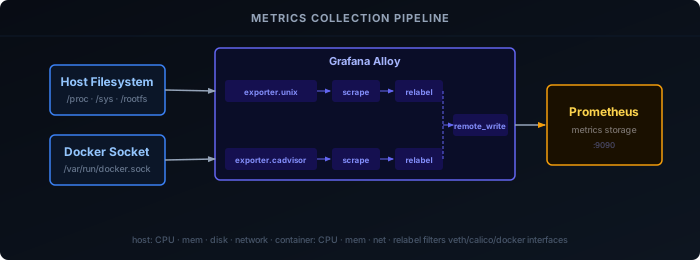
}Because Alloy runs inside Docker with the host filesystem bind-mounted at /rootfs, the rootfs_path, procfs_path, and sysfs_path fields tell the exporter where to find real system data rather than the container’s own filesystem.
disable_collectors turns off collectors you are unlikely to need on a typical Linux homelab (IPVS load balancer, Btrfs, InfiniBand). enable_collectors adds meminfo and processes, which are not enabled by default.
The filesystem block excludes virtual filesystem types (tmpfs, cgroup, overlay, etc.) and Docker-internal mount points so only real disks appear in Grafana. mount_timeout prevents the scrape from hanging if a network mount is unresponsive.
Both netclass and netdev use the same pattern to ignore virtual Ethernet interfaces created by Docker and Calico, as well as the 15-character hex interface names Kubernetes generates — keeping the network panels focused on real physical or VLAN interfaces.
Container Metrics
Create an Alloy config file for Docker container metrics:
nano alloy/config/docker-metrics.alloy// Docker container metrics (CPU, memory, network per container)
prometheus.exporter.cadvisor "dockermetrics" {
docker_host = "unix:///var/run/docker.sock"
storage_duration = "5m"
}
prometheus.relabel "docker_filter" {
forward_to = [prometheus.remote_write.default.receiver]
rule {
target_label = "job"
replacement = "docker"
}
rule {
target_label = "instance"
replacement = constants.hostname
}
// Drop container_spec metrics that frequently contain NaN values
rule {
source_labels = ["__name__"]
regex = "container_spec_(cpu_period|cpu_quota|cpu_shares|memory_limit_bytes|memory_swap_limit_bytes|memory_reservation_limit_bytes)"
action = "drop"
}
}
prometheus.scrape "dockermetrics" {
targets = prometheus.exporter.cadvisor.dockermetrics.targets
forward_to = [prometheus.relabel.docker_filter.receiver]
scrape_interval = "10s"
}Volume Mounts
The unix exporter needs access to the host filesystem, and the cAdvisor exporter needs the Docker socket. Add these volume mounts to your Alloy docker-compose.yml and recreate the container:
volumes:
  - /:/rootfs:ro
  - /sys:/sys:ro
  - /run/udev/data:/run/udev/data:ro
- /var/run/docker.sock:/var/run/docker.sock:rodocker compose up -d alloyApply Configuration
Restart Alloy to load the new config files:
docker restart alloyVerification
Open the Alloy Web UI and confirm both components are healthy:
prometheus.exporter.unix.unixprometheus.exporter.cadvisor.dockermetrics
Then verify data is flowing in Grafana’s Explore view:
node_cpu_seconds_total{job="unix"}container_cpu_usage_seconds_total{job="docker"}Grafana Dashboards
You can create your own dashboards or use these as a starting point:
- System Dashboard — host metrics
- Docker Dashboard — container metrics