
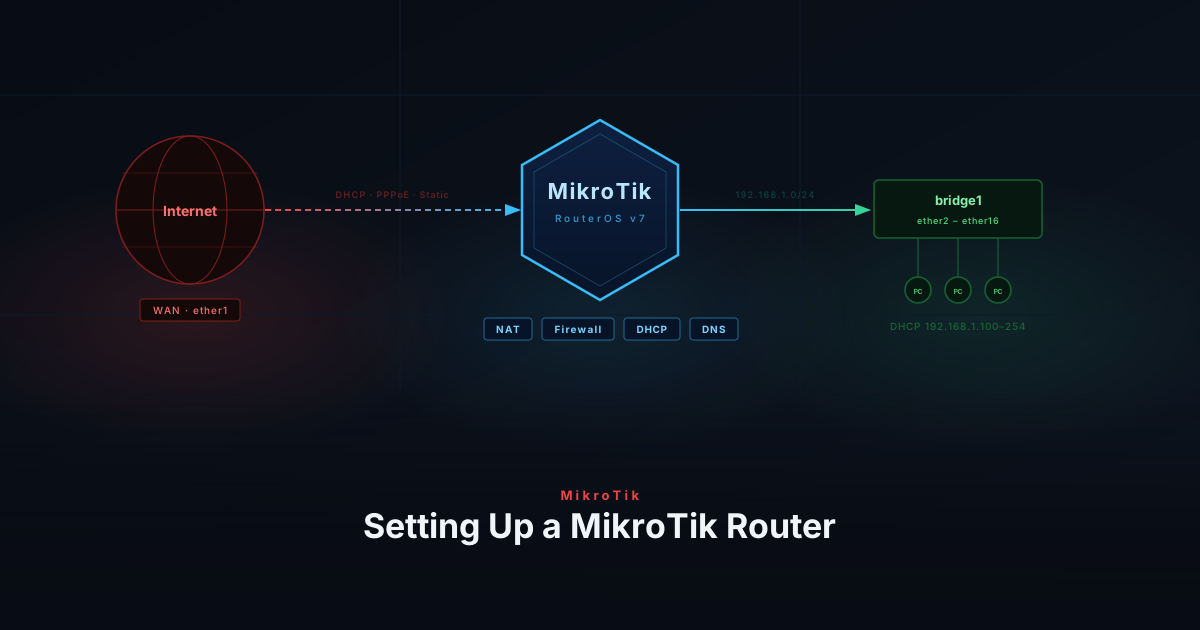
MikroTik routers are a popular choice for homelabs thanks to their flexibility and affordability. This guide walks through a clean, from-scratch configuration covering LAN, WAN, NAT, and firewall rules.
Connect to the router
You’ll need a terminal connection to paste the commands below. Two options:
Serial cable
- Connect the serial cable between the router and your computer.
- Open a terminal app: PuTTY (Windows),
screen(Linux), or Serial (macOS). - Use these settings: Baud Rate 115200 · Data Bits 8 · Stop Bits 1 · Parity None · Flow Control None.
- Log in with username
adminand no password (default).
SSH
- Connect your computer to a LAN port on the router via Ethernet.
- Set your computer to obtain an IP address via DHCP.
- SSH to the router’s default IP (
192.168.88.1), usernameadmin, no password.
Reset to a blank state
MikroTik routers ship with a default configuration that includes firewall rules, a DHCP server, and NAT. To avoid conflicts, reset to a blank state before continuing:
/system reset-configuration no-defaults=yesThe router will reboot. After the reboot there is no DHCP server, so reconnect using a serial cable or set a static IP on your computer (e.g. 192.168.1.2/24) before SSHing in. Log in again with admin and no password.
Replace the placeholder variables shown in
[BRACKETS]with values that match your environment.
LAN
Bridge interface
Create a bridge to combine the LAN ports into a single network. Adjust the port list to match your router model.
/interface bridge
add name=bridge1 protocol-mode=none
/interface bridge port
add bridge=bridge1 interface=ether2
add bridge=bridge1 interface=ether3
add bridge=bridge1 interface=ether4
add bridge=bridge1 interface=ether5
add bridge=bridge1 interface=ether6
add bridge=bridge1 interface=ether7
add bridge=bridge1 interface=ether8
add bridge=bridge1 interface=ether9
add bridge=bridge1 interface=ether10
add bridge=bridge1 interface=ether11
add bridge=bridge1 interface=ether12
add bridge=bridge1 interface=ether13
add bridge=bridge1 interface=ether14
add bridge=bridge1 interface=ether15
add bridge=bridge1 interface=ether16
/interface bridge settings set use-ip-firewall=no
/interface list
add name=LAN
/interface list member
add interface=bridge1 list=LAN
/ip address
add address=192.168.1.1/24 interface=bridge1 network=192.168.1.0DHCP
Set up a DHCP server to automatically assign IP addresses to connected devices.
/ip pool
add name=dhcp_pool0 ranges=192.168.1.100-192.168.1.254
/ip dhcp-server network
add address=192.168.1.0/24 dns-server=192.168.1.1 gateway=192.168.1.1 netmask=24
/ip dhcp-server
add address-pool=dhcp_pool0 interface=bridge1 lease-time=1d name=dhcp1DNS
Allow devices on your network to use the router as a DNS resolver.
/ip dns
set allow-remote-requests=yesIf your WAN connection uses a static IP, no upstream DNS is provided automatically. Set one manually:
/ip dns set servers=1.1.1.1,8.8.8.8WAN
ether1 is used as the WAN port in this setup. Pick the block that matches your ISP connection type and run it, then run the common step at the bottom.
/interface vlan add interface=ether1 name=internet vlan-id=[VLAN_ID]
/ip dhcp-client add interface=internet disabled=no use-peer-ntp=no add-default-route=yes
/interface ethernet set ether1 name=internet
/ip dhcp-client add interface=internet add-default-route=yes disabled=no use-peer-ntp=no/interface vlan add interface=ether1 name=vlan_int vlan-id=[VLAN_ID]
/interface pppoe-client add add-default-route=yes disabled=no interface=vlan_int name=internet use-peer-dns=yes user=[USERNAME] password=[PASSWORD]/interface pppoe-client add add-default-route=yes disabled=no interface=ether1 name=internet use-peer-dns=yes user=[USERNAME] password=[PASSWORD]/interface ethernet set ether1 name=internet
/ip address add address=[IP_ADDRESS] interface=internet
/ip route add gateway=[GATEWAY]
/ip dns set servers=[DNS_SERVER]After running the block for your connection type, add the WAN interface to the interface list:
/interface list add name=WAN
/interface list member add interface=internet list=WANNAT
Masquerade outgoing traffic so devices on your LAN can reach the internet using the router’s public IP.
/ip firewall nat
add action=masquerade chain=srcnat comment="Enable NAT on WAN interface" out-interface-list=WANFirewall
Rules are processed top-down. This configuration allows established connections and LAN-initiated traffic, and drops everything else.
/ip firewall filter
add action=accept chain=forward comment="Allow established,related" connection-state=established,related
add action=drop chain=forward comment="Drop FIN+SYN" connection-state=new protocol=tcp tcp-flags=fin,syn
add action=drop chain=forward comment="Drop SYN+RST" connection-state=new protocol=tcp tcp-flags=syn,rst
add action=drop chain=forward comment="drop invalid traffic" connection-state=invalid
add action=accept chain=forward comment="internet traffic" in-interface-list=LAN out-interface-list=WAN
add action=accept chain=forward comment="port forwarding" connection-nat-state=dstnat
add action=drop chain=forward comment="drop all else"
add action=accept chain=input comment="Allow established,related" connection-state=established,related
add action=drop chain=input comment="Drop invalid" connection-state=invalid
add action=drop chain=input comment="Drop SYN+RST" connection-state=new protocol=tcp tcp-flags=syn,rst
add action=drop chain=input comment="Drop FIN+SYN" connection-state=new protocol=tcp tcp-flags=fin,syn
add action=accept chain=input comment="Allow WireGuard" dst-port=13231 in-interface-list=WAN protocol=udp
add action=accept chain=input comment="Allow traffic from LAN interface list to the router" in-interface-list=LAN
add action=drop chain=input comment="Drop all else"
add action=accept chain=output comment="Allow established,related" connection-state=established,related
add action=drop chain=output comment="Drop invalid" connection-state=invalid
add action=accept chain=output comment="Router DHCP client to WAN" dst-port=67 out-interface-list=WAN protocol=udp
add action=accept chain=output comment="Router DNS to WAN" dst-port=53 out-interface-list=WAN protocol=udp
add action=accept chain=output comment="Router DNS to WAN (TCP)" dst-port=53 out-interface-list=WAN protocol=tcp
add action=accept chain=output comment="Router NTP to WAN" dst-port=123 out-interface-list=WAN protocol=udp
add action=accept chain=output comment="Router HTTP/HTTPS to WAN (updates)" dst-port=80,443 out-interface-list=WAN protocol=tcp
add action=accept chain=output comment="Router Allow Cloud DDNS" dst-port=15252 out-interface-list=WAN protocol=udp
add action=accept chain=output comment="Router ICMP to WAN" out-interface-list=WAN protocol=icmp
add action=accept chain=output comment="Router to LAN" out-interface-list=LAN
add action=drop chain=output comment="Drop all else"
/ip firewall service-port
set ftp disabled=yes
set tftp disabled=yes
set h323 disabled=yes
set sip disabled=yesSystem
User account
Create a new admin user, then disable the default admin account to prevent unauthorized access.
/user add name=[USERNAME] password=[PASSWORD] group=full
/user disable adminHostname
/system identity
set name=[HOSTNAME]NTP
Enable NTP to keep the router’s clock in sync and set your local timezone.
/system ntp client
set enabled=yes
/system ntp client servers
add address=time.cloudflare.com
/system clock
set time-zone-name=[TIMEZONE]Restrict management services
MikroTik enables several management interfaces by default (API, Winbox, web UI, Telnet) that are accessible from all interfaces. Disable unused ones and restrict the rest to your LAN subnet.
/ip service
set api disabled=yes
set api-ssl disabled=yes
set telnet disabled=yes
set www disabled=yes
set www-ssl disabled=yes
set ssh address=192.168.1.0/24
set winbox address=192.168.1.0/24Your MikroTik router is now configured with a secure baseline. From here you can expand with VLANs, more granular firewall rules, or additional services like a VPN.